

A good backup strategy or disaster recovery plan should always include making regularly scheduled file-based backups. Whether you manually copy files or use a commercial backup program, ongoing file-based backups are essential to ensure data loss never occurs even when hardware fails or viruses corrupt your system.
Winclone is the perfect companion to file-based backups of Boot Camp files. Should disaster strike, downtime is minimal when restoring your Winclone image, starting up Boot Camp and retrieving documents from your most recent file-based backup.
Select the Boot Camp partition in the Sources column on the left.
Migrating Windows from Boot Camp or a real PC requires preparation before the migration begins. Device drivers installed on the source computer will not match the hardware on the destination Mac, except in cases where the source and destination computers are the same model and version. Steps must be taken to remove the device drivers from the source operating system, then create the Winclone image.
Instructions for creating a Boot Camp partition can be found in the support document "Create a Boot Camp Partition".
For migrating from an existing Boot Camp partition to a different Mac, please see the support document "Migrating a Boot Camp Partition with Winclone 4".
For migrating from a real PC to Boot Camp, please see the support document "Migrating a Real PC to Boot Camp with Winclone 4".
Instructions for installing device drivers on the destination Boot Camp partition, please see the support document "Install Boot Camp Drivers".
Please check this FAQ, the Support Documents, Videos and Forum for answers to common problems.
If you have an issue and need help, please contact us at support@twocanoes.com.
We stand behind Winclone by providing exceptional customer support. If you purchased Winclone with Support and Maintenance, you can expect a response within the day and often within a few hours.
Select from the Sources column on the left. Sources for restoring a Boot Camp partition may be Winclone images, other Boot Camp volumes or Windows PC volumes. Scenarios for each are described in Migration Scenarios section below.
Mac OS X 10.7 (Lion) or 10.8 (Mountain Lion)
Boot Camp running Windows 7 or Windows 8
Winclone 3 is available for Snow Leopard and/or Windows XP (NTFS).
Winclone works on hardware that Apple officially supports with OS X Lion or higher.
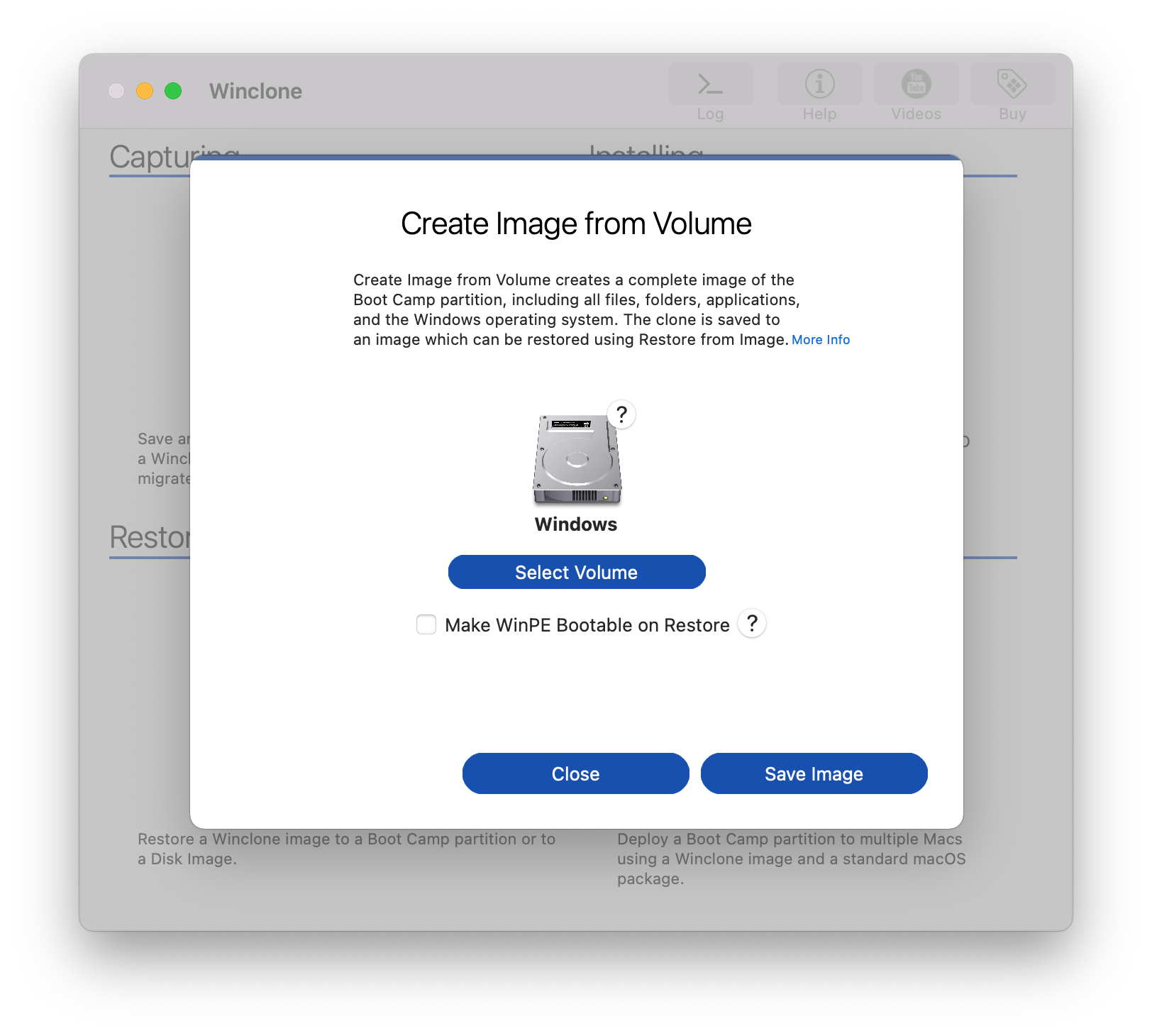
After selecting the Boot Camp partition in the Sources column, click to select the Save Image icon in the Destinations window. The Save Image icon will display a check mark icon to indicate that the destination for imaging will be a Winclone image.
The most common imaging scenario is to create a Winclone image of Boot Camp as part of a backup strategy or to use as a source for Boot Camp migration. This scenario is a two-step operation.
First, select the Boot Camp partition in the Sources column, then select Save Image in the Destination window, then click the Save Image... button.
After creating the image, it may be restored to Boot Camp, shared on the network to restore to other Mac hosts, copied as a file to another Mac to migrate Boot Camp or deployed to multiple remote Mac systems using mass deployment applications.
Winclone 4 is the ideal solution for imaging dual-boot Macs in lab, kiosk and classroom environments. Fully compatible with all major deployment and management tools, Winclone makes mass-deployment of Boot Camp a quick, easy and reliable process.
After purchasing Winclone or Winclone Pro from the Twocanoes website (twocanoes.com), an email message is automatically sent to the email address associated with the Paypal account used to purchase Winclone.
The email message will contain a link to download the Winclone installer. The link will also contain a link to download one or more license files, depending on how many copies of Winclone were purchased in the transaction.
After downloading the Winclone installation file, locate and double-click on the .dmg file to open the installation window and double-click on the Winclone package file (.pkg). To begin installation, click the Continue button followed by the Installation button. Enter your computer account password to authenticate the software installation process. Click the Close button following successful installation.
After downloading the Winclone License file, locate and double-click on the wclicense file (for Winclone Pro, the license file will have a .wcplicense extension name). Winclone will open and present the Software License Agreement. Click Agree after reviewing the agreement.
When migrating Boot Camp from one computer to another, there are some considerations to keep in mind:
A Mac in Target Disk Mode attached to a host Mac via Firewire or Thunderbolt cable can be a Source for migrating Boot Camp to a Winclone image or directly to the host Mac Boot Camp partition. Winclone will detect the attached Mac's Boot Camp partition and present it as a Source option. Select the Destination option as usual and proceed with imaging.
Please see our help document on using Winclone Pro with JAMF Casper Suite to image a lab of dual-boot Macs.
The system Console log can contain helpful troubleshooting information. Winclone can extract the relevant Console log information, along with partition information, to send in when requesting technical support.
To extract log files, select Help -> Send Logs under the Winclone Finder menu. In the resulting dialog box, click the "Get Logs" button. A Finder window will open to a temporary folder containing the logs in a compressed file named "logs.zip". This file can be attached to an email and sent to support@twocanoes.com and used to aid in troubleshooting.
The key to a successful migration is using Sysprep, a built-in Windows utility, to generalize the operating system by removing hardware-specific device drivers on the source Windows installation. This process applies whether migrating Boot Camp or a real PC to a Mac.
Instructions for using Sysprep to generalize the source Windows operating system can be found in the support document "Migrating a Boot Camp Partition with Winclone 4" and "Migrating a Real PC to Boot Camp with Winclone 4".
A real PC can be transferred, entirely intact, to Boot Camp using Winclone. The transfer requires removing the PC drive from the containing PC, attaching a SATA-to-USB adapter and connecting the USB cable to the host Mac. Winclone will detect the attached Windows drive and make this system available as a Source for migration to a Winclone image or to Boot Camp.
Please see our help document on using Winclone Pro with Deploy Studio to image a lab of dual-boot Macs.
Upgrade pricing is available here for Winclone 3 and Winclone 3 Pro users.
If you purchased Winclone 3 Individual, Winclone 3 Pro or Winclone 3 Site after May 5th 2013, you are eligible for a free upgrade to the Winclone 4 equivalent. Please contact support@twocanoes.com to request a link to the Winclone 4 installer and accompanying license file(s).
If you purchased Winclone Pro with Support or Winclone Site with Support and would like to upgrade to Winclone 4, please click here.
When saving to a Winclone image file, click the Save Image... button, click the Image... button and select a location to save the image.
Winclone images can be saved to a local or network storage location for which OS X has write permissions.
If Sysprep fails to complete, there are several possible causes:
- Windows Media Player Network Sharing Service may interfere with Sysprep. The solution is to stop or disable Windows Media Player Network Sharing Services in Services.
- Sysprep may fail with a a "fatal error" message if the Windows system has run Sysprep multiple times previously.
- As a precaution, disable anti-virus, virtualization software or imaging tools running in Windows prior to running Sysprep.
A Mac on the network can be used as a Source for disk-to-disk direct migration of Boot Camp. On the host Mac, install Winclone, select Winclone-> Preferences from the Finder and select the checkbox "Share Winclone Images on the network". This selection will make available on the network any stored Winclone images as well as the Boot Camp partition of the Mac host.
From another Mac on the same network, install Winclone and locate the remote Mac in the Sources column. Selecting the remote Mac will initiate a connection request displayed in a dialog box on the remote Mac display. Authenticate and authorize the connection from the remote Mac.
On the other Mac, the available Winclone images and Boot Camp hosted by the remote Mac should be accessible in the Sources column. Select the remote Boot Camp as a Source, then select the local Boot Camp partition as the Destination and proceed as usual by clicking the "Restore to Volume" button.
This method skips the intermediary step of creating a Winclone image, saving time and required storage space.
From the Winclone main window, go to the Finder menu under Winclone and select Check for Updates...
Once Sysprep completes and the Boot Camp partition shuts down, restart into OS X, launch Winclone and select the Boot Camp partition in the Sources column. Select the Winclone image icon in the Destinations window, then proceed by clicking the "Save Image..." button.
WInclone images stored on a remote Mac can be used as migration sources for the local Boot Camp partition. On the host Mac, install Winclone, select Winclone-> Preferences from the Finder and select the checkbox "Share Winclone Images on the network". This selection will make available on the network any stored Winclone images.
From another Mac on the same network, install Winclone and locate the remote Mac in the Sources column. Selecting the remote Mac will initiate a connection request displayed in a dialog box on the remote Mac display. Authenticate and authorize the connection from the remote Mac.
On the other Mac, the available Winclone images hosted by the remote Mac should be accessible in the Sources column. Select a remote Winclone image as a Source, then select the local Boot Camp partition as the Destination and proceed as usual by clicking the "Restore to Volume" button.
After selecting a source, select the Boot Camp partition in the Destinations window.
Winclone is a flexible application that allows imaging and restoring from drives attached internally and externally. However, the Boot Camp configuration supported by Apple is for internal drives only.
- Make sure that Boot Camp is a large enough partition to contain the image. Compare the size of the image displayed in Sources with the Boot Camp partition size displayed in the Destination window.
- Confirm that the Boot Camp partition is the last among the first four partitions on the local drive. Go to Utilities -> Terminal and type: diskutil list to view the partition information. Boot Camp should be disk0s4, meaning the fourth partition on the primary disk.
In the Winclone Finder menu, select Preferences. Here you will find your license information as well as several default settings that apply to imaging and restoring processes.
Verbose Logging: Enable for troubleshooting purposes. Disabled by default.
Check for new version at startup: Enabled by default.
When imaging, remove pagefile and hibernate file from source to reduce image size: Default is "Never". Windows keeps a large file called a pagefile.sys on the Bootcamp partition. This file takes up a lot of space and is recreated on startup. Keeping the default ensures that nothing is changed on the Windows file system when creating a Winclone image, but normally these cache files can safely be removed to save space and processing time during imaging. To always remove the pagefile and hibernate file before imaging, select "Always". If you prefer to decide each time, select "Ask".
When restoring, update boot configuration data (BCD): Default is "Always". Except in rare cases, this setting should always remain "Always". Do not change this setting unless you are using a custom BCD and know what you are doing.
Share Winclone Images on network: Disabled by default. Enabling this setting will allow other computers on the local network using Winclone to select your Mac's Winclone images and, with additional authorization, your Boot Camp partition, as remote Sources. Leave this setting disabled unless you need to share your Winclone images over the network.
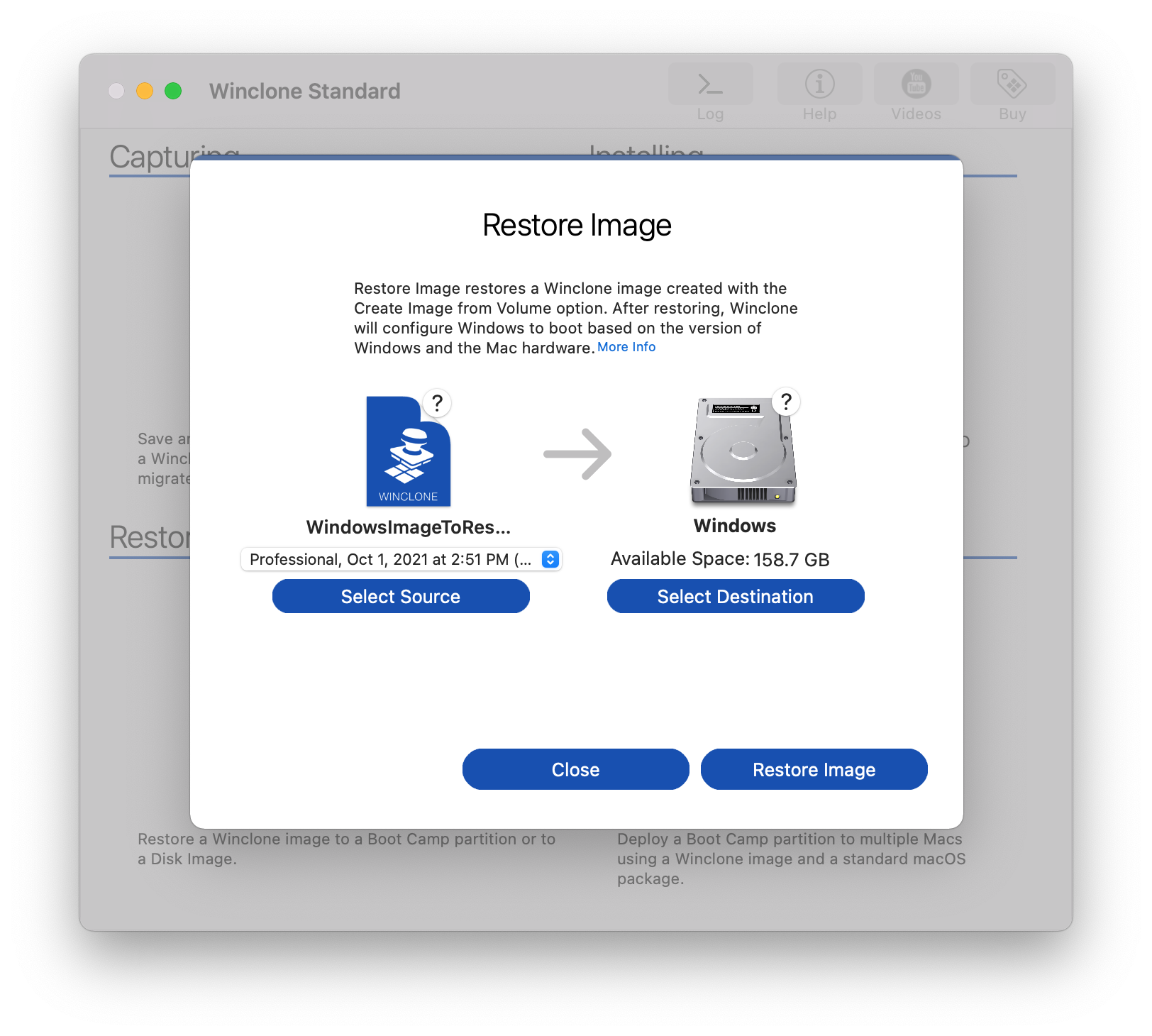
After selecting the source and selecting Boot Camp as the destination, click the Restore to Volume... button in the lower right to begin the restore process.
Once the Winclone image has been created, it can be copied to backup storage, shared on the network as an image source in Winclone or restored locally to Boot Camp. Please see the Migration Scenarios section for detailed descriptions.
When migrating from one Mac to another, make sure to take into account the differences between the two hardware configurations.
- Use Sysprep to generalize the Windows drivers before migrating or creating the Winclone image.
- Shrink the file system on the source Boot Camp/Windows if the destination Boot Camp partition is smaller.
- Disable anti-virus, virtualization and imaging software on the source Windows system before running sysprep.
Winclone allows you to create an exact image of your bootcamp partition so that it can be restored back to this exact state.
At first launch of Boot Camp following a restore process, Windows will not have device drivers that allow it to communicate with the Mac hardware until installing Boot Camp drivers. Use Boot Camp Assistant to extract the drivers to external USB storage or burn to CD/DVD. Please see support document "Install Boot Camp Drivers" for more details.
If Sysprep fails to complete, there are several possible causes:
- Windows Media Player Network Sharing Service may interfere with Sysprep. The solution is to stop or disable Windows Media Player Network Sharing Services in Services.
- Sysprep may fail with a a "fatal error" message if the Windows system has run Sysprep multiple times previously.
- As a precaution, disable anti-virus, virtualization software or imaging tools running in Windows prior to running Sysprep.
- Make sure that the source and destination Macs are on the same network.
- If using wireless connections, check to verify that the machines are using the same access point.
- After selecting a remote Mac in the Sources column, make sure to grant access from the remote Mac to allow the local Mac to select Winclone images and the Boot Camp partition hosted on the remote Mac.